
Spotify Premium is a leading music streaming service that offers ad-free listening, offline playback, and high-quality audio. However, there may come a time when users need to cancel their subscription due to personal preferences, budgeting, or switching services. Knowing how to cancel Spotify Premium efficiently is crucial to avoid unnecessary charges while ensuring access to your music until the end of your billing cycle.
Spotify provides multiple cancellation methods depending on the device, app, or platform used for subscription. These methods include cancelling via phone, the Spotify app, Android devices, directly through the website, or even without logging into your account. This guide provides detailed instructions for each method, helping you cancel safely while preserving your account data.
How to Cancel Spotify Premium on Phone
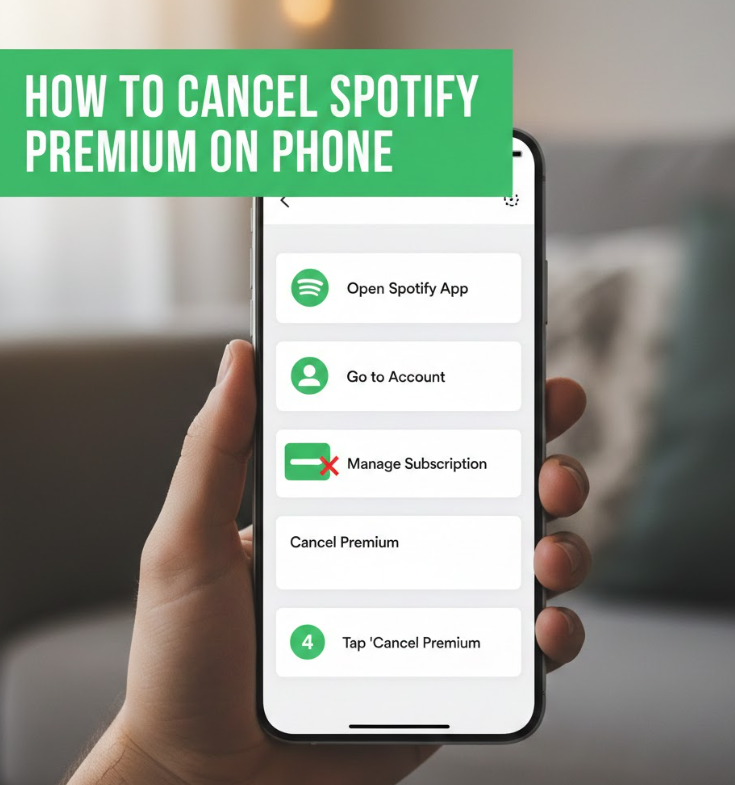
Cancelling Spotify Premium on your phone is one of the most convenient ways to manage your subscription, as mobile devices are accessible and easy to use on the go. Whether using iOS or Android, the process is straightforward if you follow the correct steps.
Key Points Explained
• Accessing Spotify account via browser
Unlike app-based cancellation, Spotify requires mobile browsers to manage Premium subscriptions. Open a browser on your phone, navigate to the Spotify website, and log into your account using your credentials. Mobile browsers provide the full functionality for subscription management.
• Navigating to subscription settings
Once logged in, select your profile icon, go to “Account” → “Subscription.” This section shows your current plan, billing information, and cancellation options. Accessing this menu ensures you manage the correct account, avoiding accidental cancellation of other services.
• Choosing cancel subscription option
Within the subscription page, click “Change Plan” and select “Cancel Premium.” Spotify may present alternative plans or incentives to retain your subscription. Confirming the cancellation ensures your Premium subscription will not auto-renew.
• Understanding billing implications
Cancelling Spotify Premium does not result in an immediate loss of access. Your subscription continues until the end of the current billing cycle, allowing you to enjoy Premium features until the paid period expires.
• Confirmation and email verification
After cancellation, Spotify sends a confirmation email. This verification ensures that your account has been successfully downgraded to the free plan. Keep this email for future reference.
• Reactivation if needed
Spotify allows you to reactivate Premium anytime. You can log back into your account, select a plan, and resume Premium service, giving flexibility if your decision changes.
Also Read:- How to Lose Face Fat at Home: Fast Methods That Work
How to Cancel Spotify Premium on App
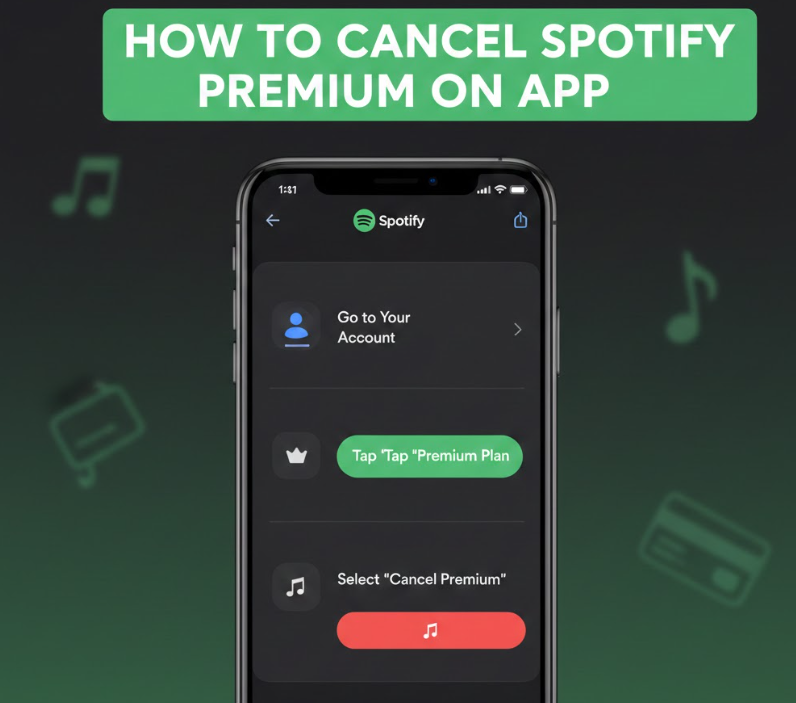
While Spotify apps on iOS or Android are useful for listening, they do not allow direct cancellation in all cases. Users often need to navigate through account settings or linked services to cancel Premium effectively.
Key Points Explained
• Opening the Spotify app
Launch the Spotify app and log into your account. Ensure you are using the latest version to access updated menu options, which may include shortcuts for subscription management.
• Accessing account settings
Within the app, tap on “Home,” then the gear icon for Settings. Scroll to “Account” or “Subscription” to view details about your Premium plan, billing dates, and available cancellation options.
• Using “Manage Subscription” option
Some app versions redirect to the Spotify website for subscription management. Select “Manage Subscription” to proceed, which ensures your cancellation is processed securely through Spotify’s platform.
• Confirming cancellation
Spotify often asks for confirmation and may offer alternative plans, discounts, or free trials. Confirming the decision prevents automatic renewal and ensures your subscription is downgraded.
• Understanding mobile app limitations
Due to app store policies, some cancellations may need to go through iTunes (iOS) or Google Play (Android) if you subscribed via these platforms. Understanding this ensures you follow the correct method.
• Reactivation through app
Once cancelled, you can still upgrade back to Premium through the app. The reactivation process is seamless, allowing you to enjoy Premium features immediately after resubscribing.
Also Read:- How to Stop Coughing: Effective Remedies Backed by Experience and Science
How to Cancel Spotify Premium on Android
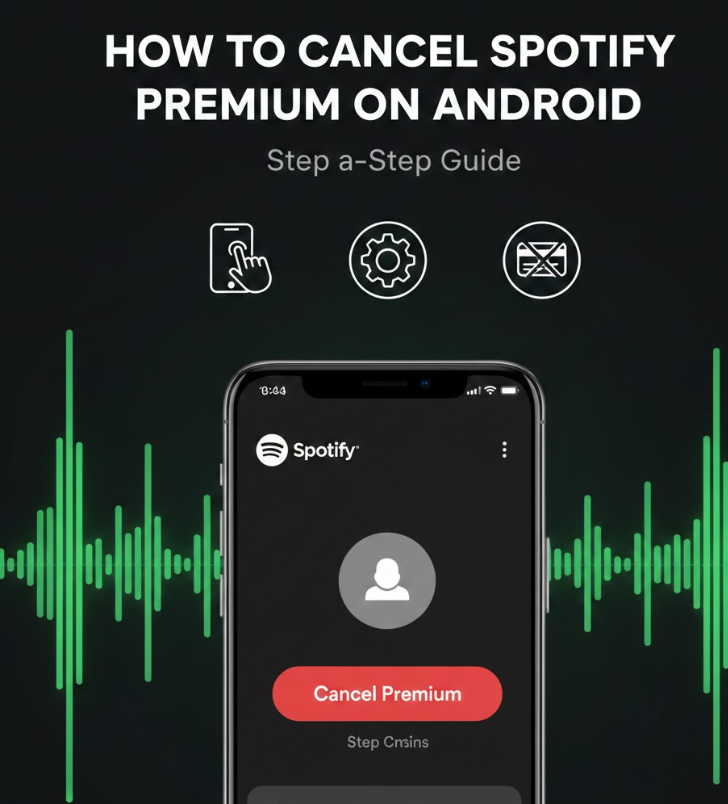
Android users often subscribe via Google Play, which requires using the Google Play Store or Spotify website to cancel. Understanding these methods prevents billing issues or accidental continued charges.
Key Points Explained
• Accessing Google Play Store
Open Google Play Store on your Android device, tap your profile, and select “Payments & Subscriptions” → “Subscriptions.” This interface lists all active subscriptions, including Spotify Premium.
• Selecting Spotify Premium
Find Spotify Premium in your list of subscriptions. Selecting it ensures that only this subscription is cancelled, avoiding errors with other services.
• Initiating cancellation
Tap “Cancel Subscription” and follow on-screen instructions. Google Play may request confirmation to prevent accidental cancellation. Completing this process ensures Premium service will not renew.
• Checking billing cycle
Spotify Premium remains active until the end of your paid cycle, even after cancellation. Understanding this helps manage expectations and prevents surprises.
• Confirmation email
After cancellation, you will receive an email from Google Play confirming your action. Keep this email as proof of cancellation for future reference or disputes.
• Reactivation through Google Play
You can resubscribe at any time via Google Play. This flexibility allows Android users to pause Premium and return whenever desired without losing account history.
Also Read:- How to Make Red: A Complete Guide to Red Foods, Drinks, and Colors
How to Cancel Spotify Premium Subscription
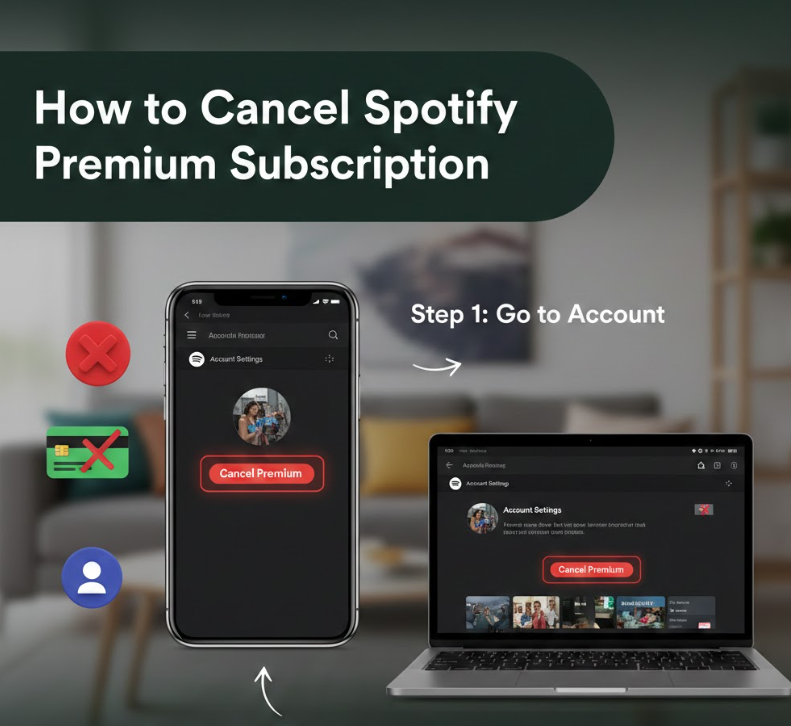
Cancelling Spotify Premium directly through the Spotify website is the most universal method, regardless of device or app. This ensures access to all account management features.
Key Points Explained
• Logging into Spotify account
Go to Spotify.com and log in with your credentials. Correct login ensures you manage the right subscription and avoid issues with multiple accounts.
• Navigating to subscription settings
Select your profile, go to “Account,” then “Subscription.” This section provides all subscription details, including plan type, billing frequency, and renewal date.
• Choosing cancel option
Click “Change Plan” and select “Cancel Premium.” Spotify may offer incentives, such as discounts or temporary free periods. Confirming ensures the subscription stops at the end of the billing cycle.
• Understanding cancellation timing
Your account stays active with Premium features until the current billing cycle ends. This allows uninterrupted service and ensures you get full value for the last payment.
• Receiving confirmation
Spotify sends a confirmation email once the cancellation is processed. Save this email as proof and reference for future support inquiries.
• Reactivation options
If needed, log back into Spotify, select a plan, and upgrade to Premium again. Reactivation is immediate, allowing users to enjoy Premium without losing playlists or account data.
Also Read:- How to Make Friends: A Complete Guide to Building Lasting Relationships
How to Cancel Spotify Premium Without Logging In
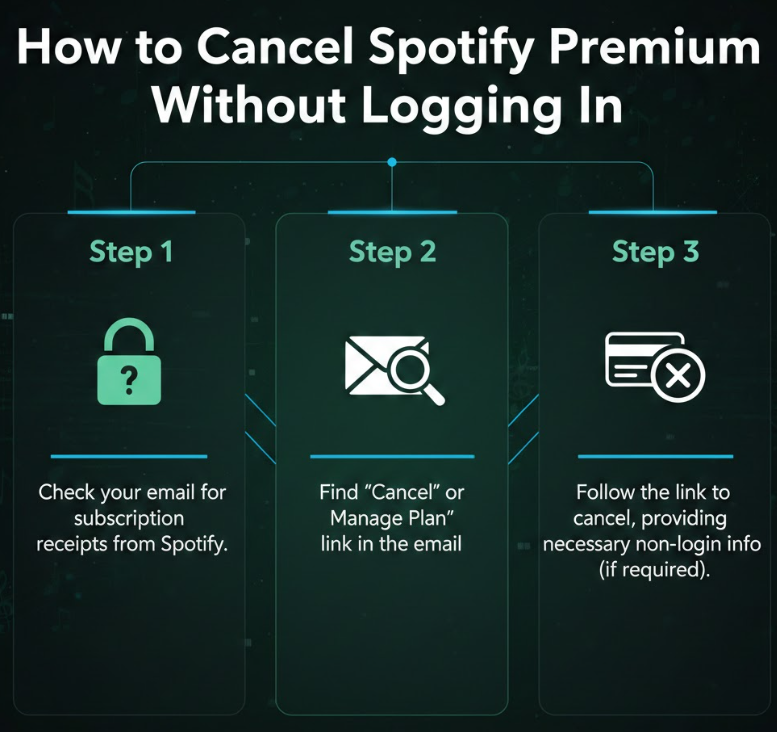
Sometimes, users may need to cancel Premium without direct access to their Spotify account due to forgotten passwords or lost credentials. This requires alternative methods to stop payments.
Key Points Explained
• Using password reset
Go to Spotify’s password reset page to regain account access. You will receive a reset link via email. Resetting the password is essential for managing subscriptions securely.
• Contacting Spotify support
If password reset is not possible, contact Spotify Support directly. Provide account details, such as email or payment method, to verify identity. Support can process cancellation for you.
• Cancelling through payment provider
If Premium is linked to a credit card, PayPal, or app store, contact the provider to stop recurring charges. This prevents further payments while you regain access to Spotify.
• Confirmation of cancellation
Ensure you receive confirmation from Spotify or the payment provider that the subscription has been cancelled. This avoids unwanted future charges.
• Monitoring bank or app statements
Check statements to verify that no further Premium charges occur. Keeping track helps identify accidental renewals or billing errors.
• Future account access
Once access is restored, you can log in to Spotify and manage your subscription. This ensures long-term control over your account and payment settings.
Also Read:- How to Play Old Maid: The Ultimate Card Game Guide
Conclusion
Knowing how to cancel Spotify Premium ensures users can manage subscriptions effectively, avoid unnecessary charges, and retain control over music streaming access. Whether cancelling on a phone, app, Android device, website, or without logging in, understanding the correct steps guarantees a smooth process. Always confirm cancellations via email, note the end of billing cycles, and monitor statements to prevent surprises.
Following these methods allows users to enjoy flexible subscription management, pause services when necessary, and reactivate Premium whenever desired, maintaining control over their streaming experience.
FAQs
Can I cancel Spotify Premium anytime?
Yes, you can cancel at any time, but access continues until the end of the billing period.
Will I lose access immediately after cancellation?
No, you retain Premium features until the paid period expires.
How do I cancel Spotify Premium on Android?
Use Google Play Store → Subscriptions → Spotify Premium → Cancel, or via the Spotify website.
Can I cancel Spotify Premium without logging in?
Yes, by contacting Spotify Support or stopping payments via your bank or app store.
Do I get a refund if I cancel early?
No, Spotify does not issue partial refunds, but you keep access until the end of the billing cycle.
For More Visit guideitfast.com