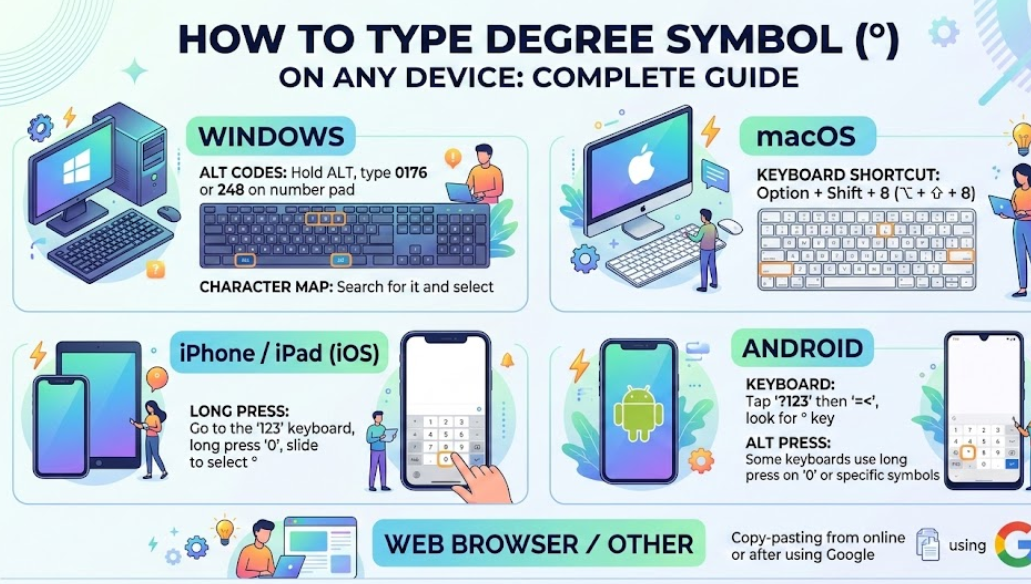
If you’ve ever written temperatures like 25°C or angles like 90°, you’ve probably searched for how to type degree symbol correctly. While it looks simple, the small circle (°) isn’t directly visible on most keyboards. That’s why many users struggle to insert it in documents, emails, spreadsheets, or social media posts.
Whether you’re using Windows, Mac, iPhone, or Chromebook, this comprehensive guide explains every reliable method. We’ll cover keyboard shortcuts, character maps, Unicode codes, copy-paste methods, and accessibility tools. You’ll also learn practical examples for academic writing, weather reports, mathematics, engineering, and scientific documentation.
The degree symbol is officially recognized in the Unicode Standard and widely used in metric and imperial systems. In Unicode, it is represented as U+00B0. Understanding how to access it efficiently improves writing accuracy and professionalism.
Let’s explore the correct ways to type it across devices.
Understanding the Degree Symbol (°): Meaning and Usage
Before learning how to type degree symbol, it’s important to understand what it represents.
The degree symbol (°) is a typographic mark used to indicate temperature (°C, °F), geographic coordinates (40°N), and angles in geometry (45°). It is distinct from a superscript zero or the letter “o.” Using the correct symbol ensures clarity in formal writing.
In scientific and academic documents, precision matters. For example:
- 37°C indicates body temperature
- 180° describes a straight angle
- 23°N marks a latitude coordinate
Using incorrect formatting may confuse readers or reduce credibility.
Modern operating systems follow Unicode standards maintained by the Unicode Consortium. This ensures consistent display across devices and software.
Also Read:- How to Make Obsidian in Minecraft: The Complete Expert Guide
How to Type Degree Symbol on Windows
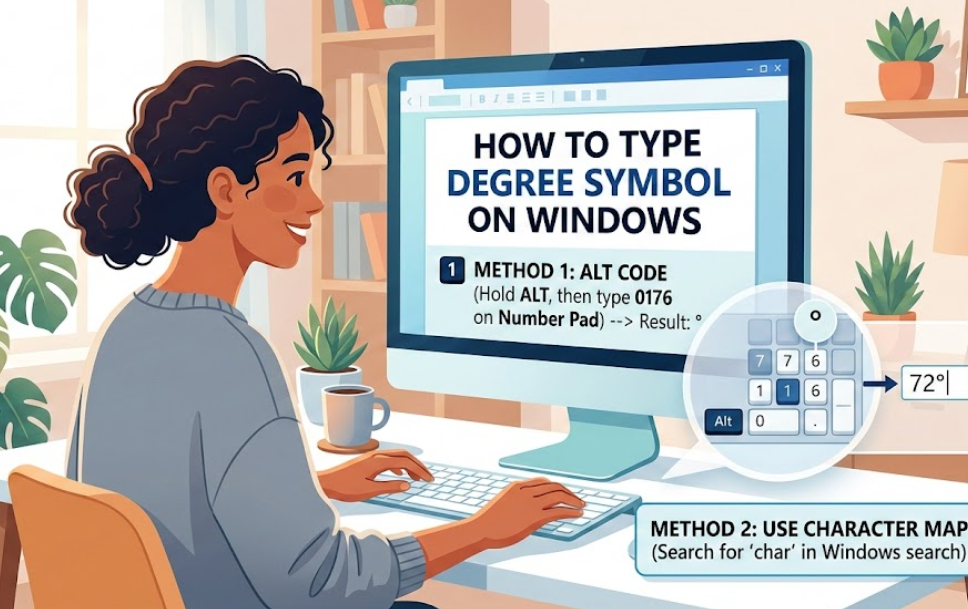
Typing the degree symbol on a Windows PC is straightforward once you know the keyboard shortcut.
Windows supports multiple methods, including Alt codes, Character Map, and on-screen keyboard tools. These options work across applications like Microsoft Word, Excel, Google Docs, and email platforms.
Using the Alt Code Method
The fastest method:
• Hold the Alt key
• Type 0176 on the numeric keypad
• Release the Alt key
The degree symbol (°) will appear instantly.
Important: This works only if you use the numeric keypad, not the number row above letters.
Using Character Map in Windows
Windows includes a built-in utility called Character Map.
Steps:
• Press Windows + R
• Type “charmap” and press Enter
• Locate the degree symbol
• Click Select → Copy → Paste into document
Character Map allows insertion of special symbols not found on keyboards.
Using Microsoft Word Shortcut
In Microsoft Word:
• Type 00B0
• Press Alt + X
Word converts the Unicode code into the degree symbol.
Microsoft Word is developed by Microsoft, and this feature supports Unicode formatting.
Why Windows Offers Multiple Methods
Windows supports legacy Alt codes and Unicode because:
• It maintains backward compatibility
• It supports global character sets
• It integrates with accessibility features
This flexibility ensures reliable insertion in professional documents.
Also Read:- How to Dice an Onion: The Complete Step-by-Step Kitchen Guide
How to Type Degree Symbol on Mac
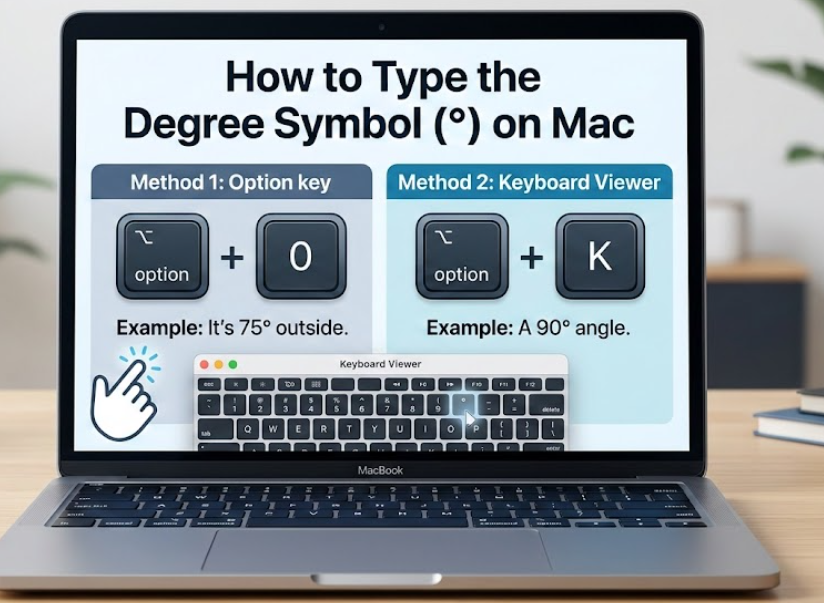
If you use macOS, typing the degree symbol is even simpler.
Apple devices include intuitive keyboard shortcuts for typographic characters.
Mac Keyboard Shortcut
The easiest method:
• Press Option + Shift + 8
The degree symbol (°) appears instantly.
This shortcut works in:
• Pages
• Safari
• Mail
• Google Docs
• Notes
Mac computers are developed by Apple, and macOS integrates Unicode natively.
Using Emoji & Symbols Viewer
If you forget the shortcut:
• Press Control + Command + Space
• Search for “degree”
• Click to insert
The Symbols Viewer contains mathematical symbols, currency signs, and accented characters.
Why Mac Makes It Easier
macOS emphasizes typography and publishing standards. That’s why:
• Unicode integration is seamless
• Keyboard shortcuts are consistent
• Formatting is professional-grade
For writers, designers, and engineers, this efficiency saves time.
Also Read:- How to Ripen Avocados: Complete Guide for Perfectly Ripe Fruit
How to Type Degree Symbol on iPhone

Mobile users frequently ask how to type degree symbol on iPhone, especially when texting weather updates or academic notes.
iPhones provide an intuitive method through the virtual keyboard.
iPhone Keyboard Method
Steps:
• Open keyboard
• Tap the “123” key
• Press and hold the zero (0)
• Slide finger to select the degree symbol
The symbol appears instantly.
This method works in:
• Messages
• Notes
• Safari
• Email apps
• Social media
Why the Symbol Is Hidden
Mobile keyboards prioritize space efficiency. The degree symbol is placed under the zero because:
• It relates to numerical input
• It’s commonly used with numbers
• It maintains clean interface design
Apple’s design philosophy focuses on simplicity and intuitive gestures.
Alternative Copy-Paste Method
If needed, you can copy this symbol: °
Save it in Notes for quick reuse.
Also Read:- How to Fix WiFi: The Complete Step-by-Step Troubleshooting Guide
How to Type Degree Symbol on Chromebook
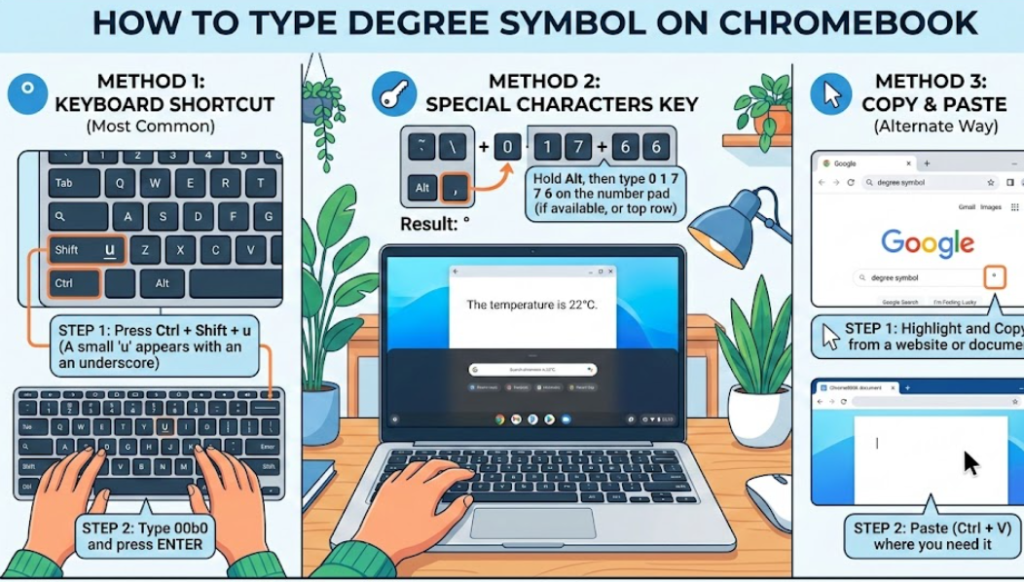
Chromebook users often struggle because Chrome OS differs from Windows and Mac.
Chromebooks run on Chrome OS, developed by Google.
Using Keyboard Shortcut on Chromebook
Method:
• Press Ctrl + Shift + U
• Type 00B0
• Press Enter
This inserts the degree symbol using Unicode input.
Using On-Screen Keyboard
Steps:
• Enable virtual keyboard in settings
• Open numeric layout
• Select degree symbol
This method is helpful for touch devices.
Why Chromebook Uses Unicode Entry
Chrome OS is Linux-based. It relies on Unicode input standards rather than Alt codes.
Advantages:
• Consistent across languages
• Compatible with web-based apps
• Supports international typing
Common Mistakes When Typing Degree Symbol
Many users confuse similar characters.
Common errors include:
• Using lowercase letter “o” instead of °
• Using superscript zero
• Using quotation marks
Correct usage ensures clarity in:
• Academic writing
• Engineering diagrams
• Weather forecasting
• Mathematical equations
Practical Examples of Using the Degree Symbol
Here are real-world examples:
• The temperature today is 28°C.
• Water freezes at 32°F.
• A right angle measures 90°.
• The city lies at 34°N latitude.
Correct formatting improves readability and professionalism.
Degree Symbol in HTML and Coding
Web developers use HTML entities.
HTML Code:
°
Unicode:
°
This ensures correct rendering across browsers like Chrome, Safari, and Firefox.
Also Read:- How to Take Care of Mums: The Complete Expert Guide to Healthy, Long-Lasting Blooms
Conclusion
Learning how to type degree symbol is simple once you understand device-specific shortcuts. Whether you’re using Windows, Mac, iPhone, or Chromebook, each system provides reliable methods for inserting the symbol correctly.
To summarize:
• Windows: Alt + 0176
• Mac: Option + Shift + 8
• iPhone: Hold zero (0)
• Chromebook: Ctrl + Shift + U → 00B0
Using the correct degree symbol improves clarity, professionalism, and technical accuracy. From weather reports to engineering diagrams, precise formatting matters.
FAQs
What is the keyboard shortcut for degree symbol?
It depends on your device. Windows uses Alt + 0176, Mac uses Option + Shift + 8.
Can I type degree symbol without numeric keypad?
Yes, use Character Map (Windows) or Unicode input.
Why does my degree symbol look different?
Font styles may slightly vary appearance.
Is degree symbol different from superscript zero?
Yes. They are distinct Unicode characters
For More Visit guideitfast.com